
How to resize an image for web, email, and social media
A photo straight from a phone or camera is often several thousand pixels wide and several megabytes in size — far more than a web page, an email, or a social post actually needs. Resizing it makes pages load faster, keeps emails from bouncing, and stops platforms from re-compressing your image into mush. This guide covers the two numbers that matter, the target sizes for common situations, and the order of steps that gets you there reliably.
The two numbers: dimensions and file size
Dimensions are the width and height in pixels, like 4032×3024. File size is how much space the file takes up, in kilobytes or megabytes. They usually move together — smaller dimensions mean a smaller file — but you can also shrink the file at the same dimensions by lowering the export quality. The first question to ask is which one your destination actually limits: a width in pixels, or a maximum file size. That tells you which lever to pull.
If the dimensions already match your destination, use the Image Compressor and inspect the resulting file size and image quality before adjusting the compression. It does not guarantee a smaller file or an exact KB target. PNG and BMP inputs export as JPEG, with transparent areas filled white.
Target dimensions for common uses
Start with the width the image occupies in your layout, measured in CSS pixels. These examples are starting points, not upload requirements or file-size guarantees. Keep the aspect ratio; crop first if the destination needs a different shape.
| Use | Display width | Export width |
|---|---|---|
| Article photo | 600 CSS px | 600 px, or 1200 px for 2× |
| Wide banner | 1200 CSS px | 1200–2400 px; compare file weight |
| Thumbnail | 150 CSS px | 150 px, or 300 px for 2× |
| Email image | 600 CSS px | 600–1200 px; check the email template |
For social posts, check your destination's current dimensions and cropping rules before exporting. A larger file is not automatically a better fit, and platforms may re-encode any upload.
A measured example: one photo, two website sizes
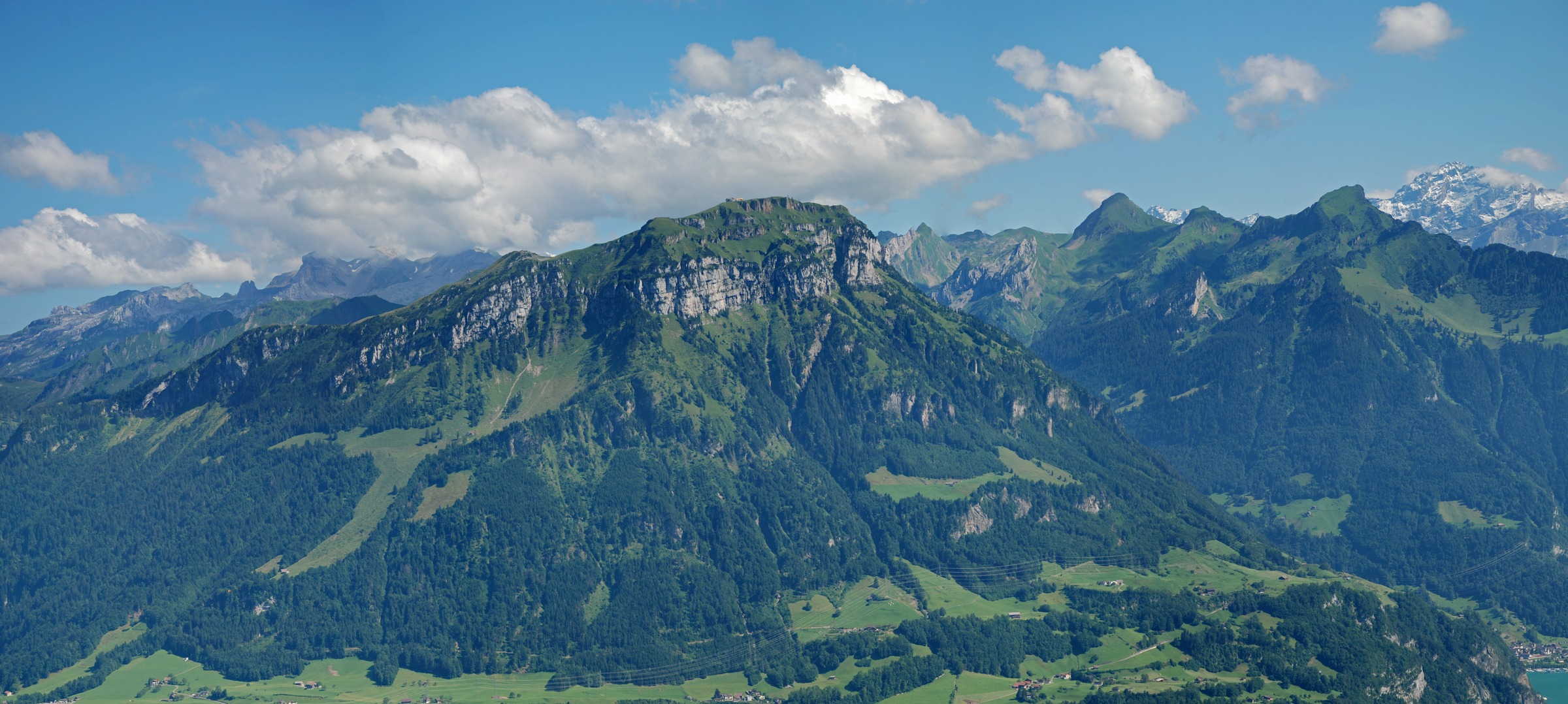
Suppose your article has a 600 CSS-pixel image slot. Our downloadable example starts at 2400×1078 pixels and 716,415 bytes. It is a resized copy of Hannes Röst's Fronalpstock panorama, whose original is 10,109×4,542 pixels and 14,679,474 bytes. We made the smaller source so you can try the exercise without downloading the full panorama.
- Download the example source JPG and open it in the Image Resizer.
- Set the width to 600 pixels for a standard-density export, or 1200 pixels for a 2× export. Keep the linked aspect ratio and choose JPEG. Both sizes retain the whole scene.
- Adjust quality while checking the mountains, rooftops, and clouds in the preview. Download the result and compare its file size and appearance at the actual display width. Keep the source for future edits.
| JPG download | Pixels | Encoder quality | Bytes |
|---|---|---|---|
| Example source | 2400 × 1078 | 92 | 716,415 |
| 600px export | 600 × 270 | 80 | 32,614 |
| 1200px export | 1200 × 539 | 80 | 118,420 |
The 1200-pixel version uses about 3.6 times the bytes of the 600-pixel version in this example. That extra detail may be useful on a high-density display; it is not free. The source also uses a higher JPEG quality, so the reduction from source to export reflects both resizing and compression, not resizing alone.
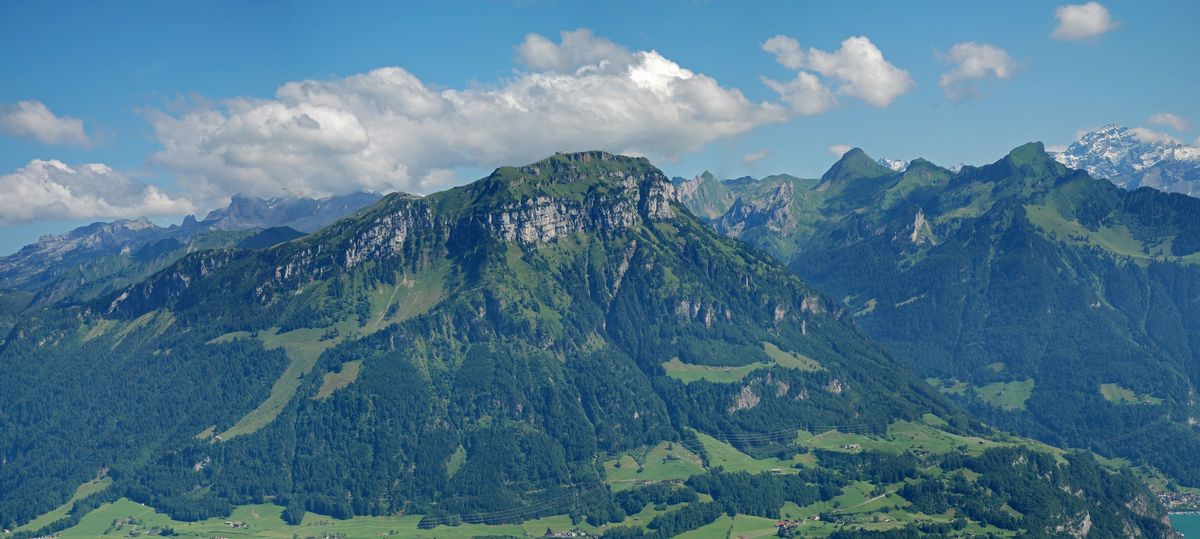
Photo: Fronalpstock by Hannes Röst, licensed CC BY-SA 3.0. PixTools resized and re-encoded these copies and removed metadata; the photo derivatives retain the same license. Attribution and reproduction details.

How we produced these reference files
Measured on September 21, 2026 with Node v22.22.3 and sharp 0.33.5 / libvips 8.15.3. Settings: JPEG, Lanczos3 resize, 4:2:0 chroma subsampling, metadata removed. The 2400-pixel source uses quality 92; both exports use quality 80 and are encoded separately from that source. Download the measurements and file checksums.
These files were encoded with a command-line image library, not captured from a browser. JPEG quality 80 here is an encoder setting, not the PixTools quality slider's 80%. Your browser and its encoder may produce different bytes. Use the files to compare the size/detail tradeoff, then inspect your own export.
The reliable order: resize, then compress
If dimensions need changing, work in two passes. First, set the dimensions to what the destination needs — this alone usually does most of the size reduction, and it keeps the aspect ratio so the image is never stretched. Then lower the quality for JPG or WebP output until the preview still looks clean; a setting a little below maximum removes detail your eyes will not miss. Doing it in this order means you are compressing an already-smaller image, which gives you the lightest file for the quality you want. The Image Resizer previews both the result and the estimated size as you adjust.
Pick a web-friendly format too
Dimensions are only half the story; the format affects size just as much. For photos on the web, WebP is usually the smallest sensible choice, with JPG as a compatible fallback; PNG is best reserved for graphics and transparency, where it can otherwise balloon a photo's size. If you are unsure, see WebP vs PNG vs JPG for a side-by-side comparison, and use the Image Converter if you need to change format before or after resizing.
Why smaller images are worth the effort
Oversized images are the most common reason web pages feel slow. A single multi-megabyte photo can take longer to load than the rest of the page combined, and slow pages frustrate visitors and can weigh on search ranking. Email is similar: large attachments are slow to send, can hit size limits, and may not display inline. Spending a few seconds to resize before you upload pays off every time the image is viewed afterward.
Resizing is not the same as cropping
Resizing changes how many pixels the whole image contains while keeping the same scene. Cropping cuts away part of the scene to change its shape or focus. They solve different problems: resize when the picture is right but too big, and crop when you want a square avatar from a rectangular photo or need to trim distractions at the edges. Often you do both — crop to the composition you want, then resize to the dimensions the destination needs.
Keep the aspect ratio unless you mean to change it
The aspect ratio is the relationship between width and height. Changing only one of them stretches or squashes the image and makes people look distorted, so good tools lock the ratio by default and the PixTools resizer keeps it for you. When a destination demands an exact square or banner shape that does not match your photo, crop to that shape first, then resize — that hits the required dimensions without distorting anyone.
What about high-resolution (retina) screens?
A 600 CSS-pixel slot is the image's layout width, not necessarily the number of physical screen pixels. A display with a device pixel ratio of 2 uses 1200 screen pixels across that slot. A 1200-pixel export can supply that detail while still displaying at 600 CSS pixels; a 600-pixel export must be stretched across those screen pixels. On a narrow phone layout the slot may be smaller, so compare at the size people will actually see. Exporting at 2× does not recover detail missing from a small original.
Common mistakes to avoid
Three trip people up repeatedly. Uploading the full-size original and letting the platform shrink it gives you no control over quality — resize it yourself first. Trying to enlarge a small image to fill a big space adds no real detail; that is upscaling, not resizing, and it has limits. And exporting a heavily compressed photo at full quality can produce a file larger than the one you started with, because high quality means re-encoding with little compression, not matching the original. Keep an untouched original, and export sized copies from it.