
WebP vs PNG vs JPG vs AVIF: which image format should you use?
Most image headaches — blurry logos, bloated pages, a transparent background that turns white — come down to one decision: the file format. Each format is good at something and bad at something else, and picking the right one takes a few seconds once you know the trade-offs. This guide explains the four formats you will actually choose between for the web, then gives a plain rule for each common situation.
The 10-second answer
For photographs on the web, use WebP (or JPG if you need maximum compatibility). For logos, icons, screenshots, and anything with a transparent background, use PNG (or WebP). When the smallest possible file matters most and your audience uses modern browsers, use AVIF. If you only remember one thing: WebP is a safe modern default for almost everything on a website.
Measured examples: a photo, a transparent graphic, and a screenshot
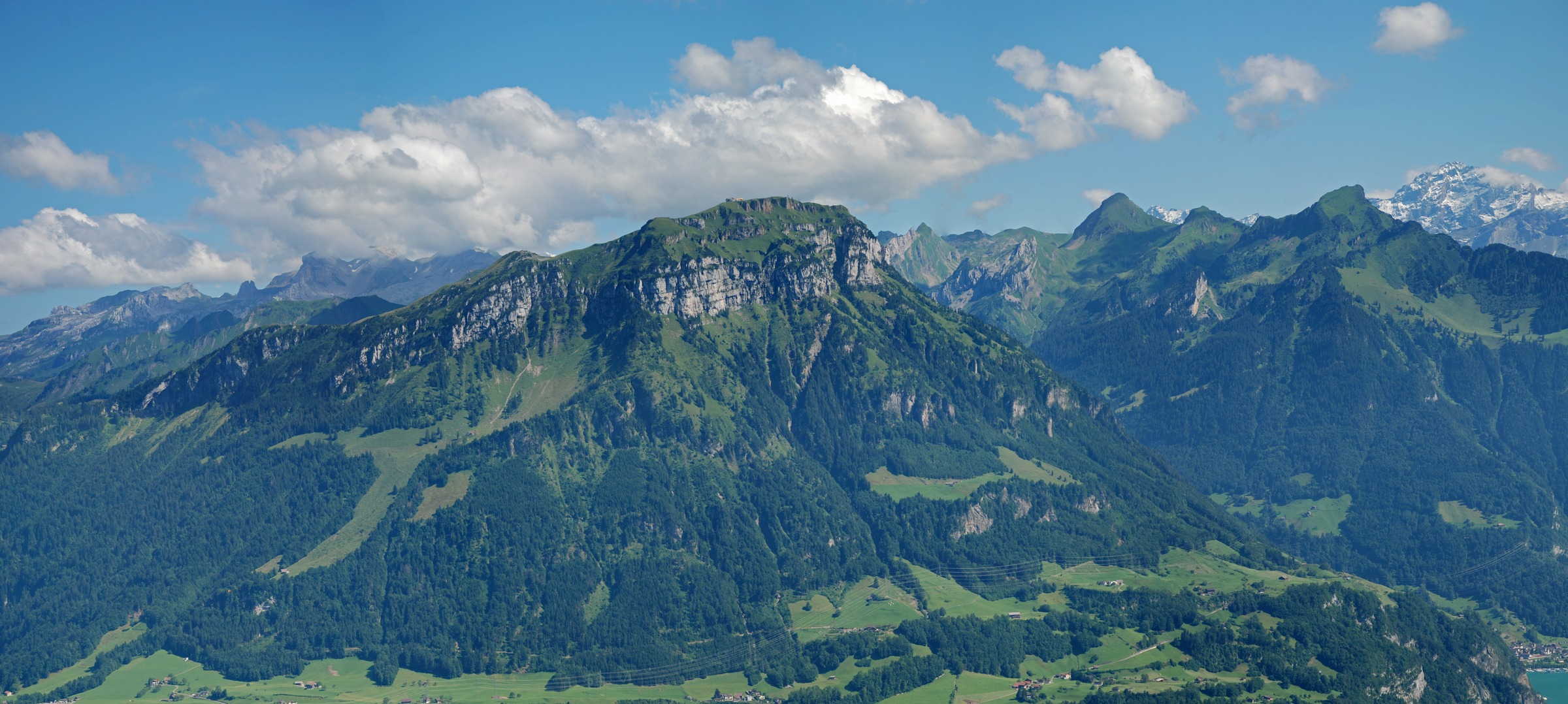
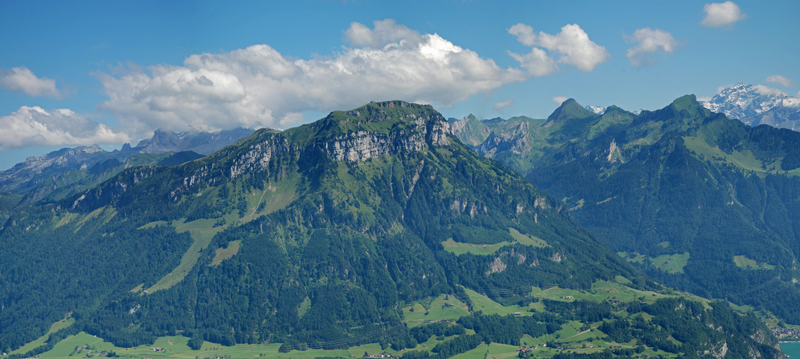
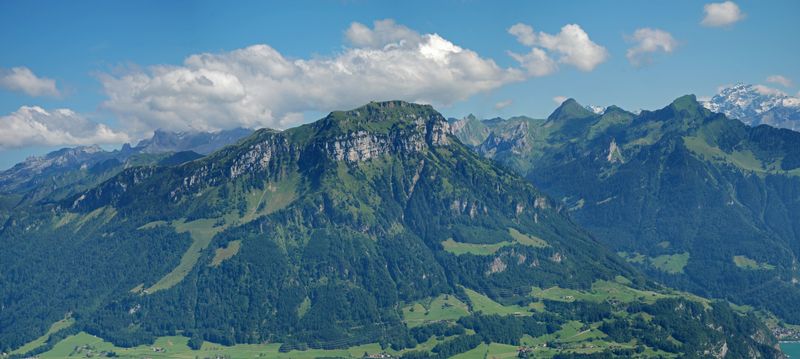
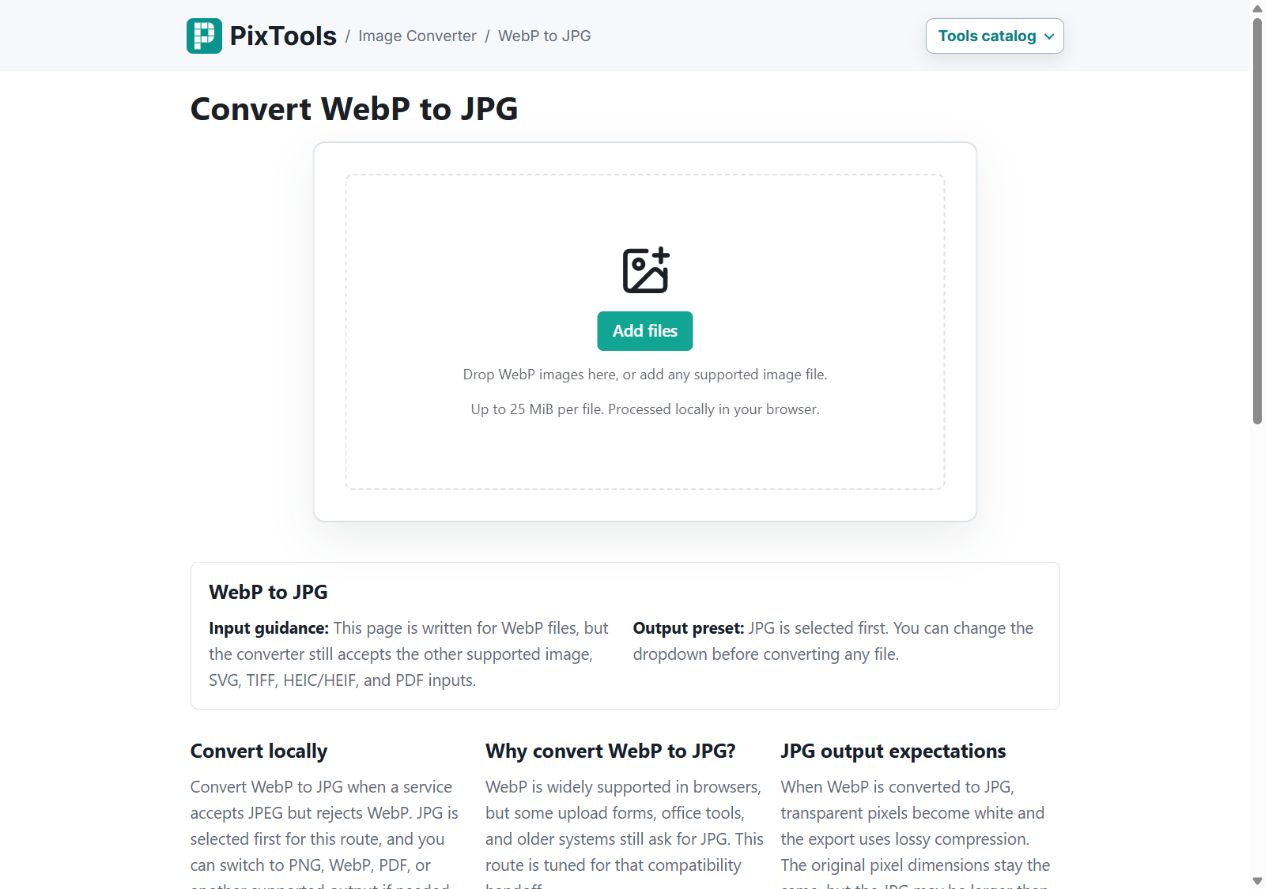
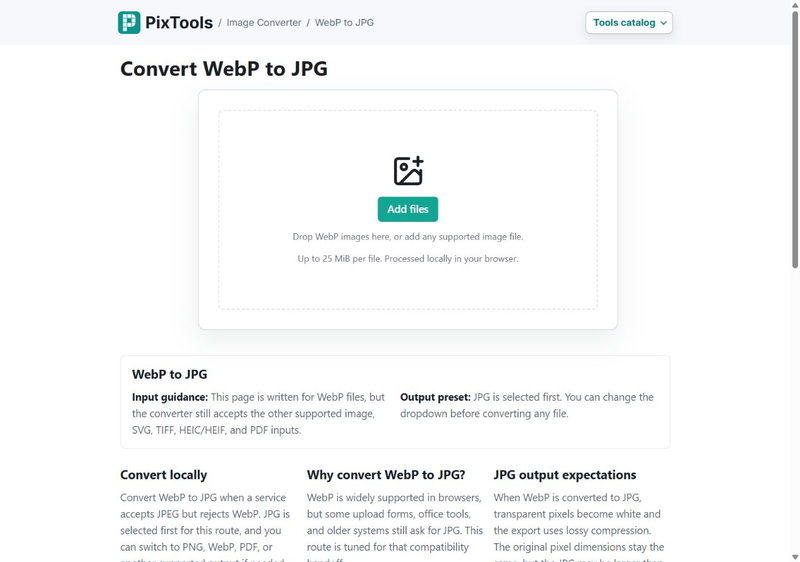
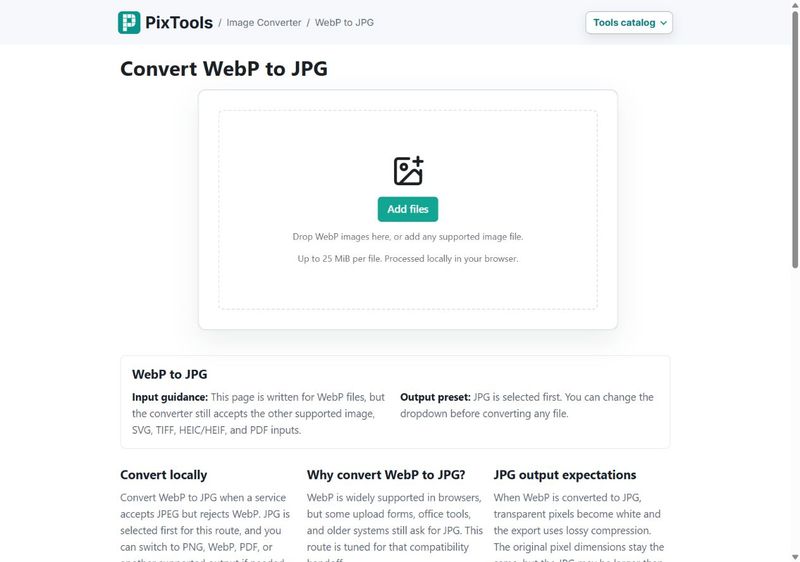
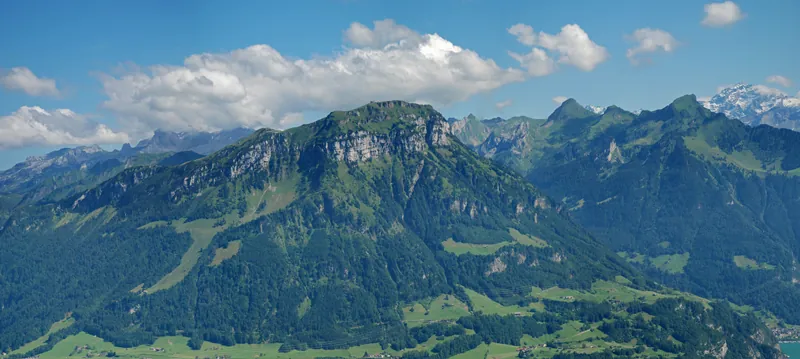
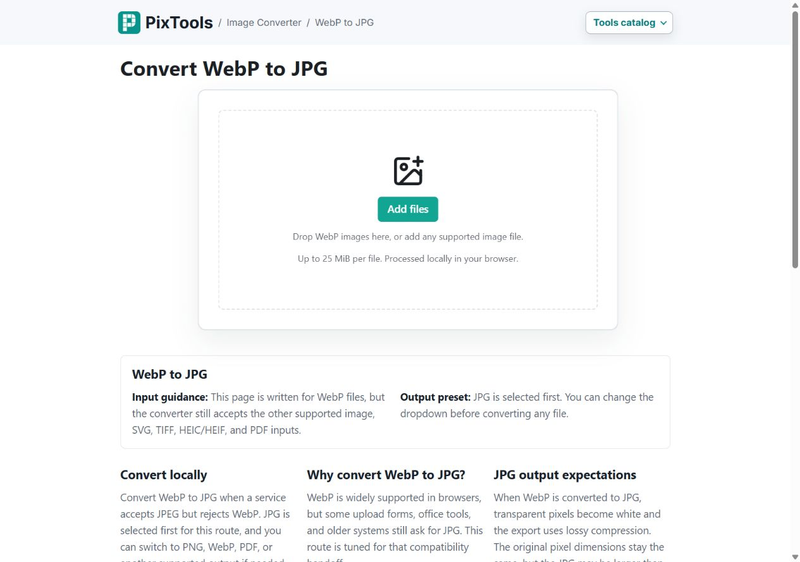
We exported these three reference images at 800 pixels wide on September 21, 2026. Each row uses the same resized input pixels, with no crop. Download a file to inspect it at full size; the previews below are scaled to fit this page. File sizes are measured bytes, with decimal KB in parentheses (1 KB = 1,000 bytes). These examples illustrate trade-offs, not a format benchmark or a promise about your own file.
| Input | PNG | JPG | WebP |
|---|---|---|---|
| Mountain photo source Outputs: 800 × 359 | 630,963 bytes (631.0 KB)
Lossless | 54,650 bytes (54.6 KB)
Lossy, quality 80 | 43,574 bytes (43.6 KB)
Lossy, quality 80 |
| Transparent graphic source Outputs: 800 × 450 | 13,909 bytes (13.9 KB)
Lossless | 12,516 bytes (12.5 KB)
Lossy, quality 80 | 7,288 bytes (7.3 KB)
Lossless |
| Browser screenshot source Outputs: 800 × 562 | 162,824 bytes (162.8 KB)
Lossless | 40,079 bytes (40.1 KB)
Lossy, quality 80 | 119,508 bytes (119.5 KB)
Lossless |




What these files tell you
Photo: the PNG is much larger here because it keeps every decoded pixel. It cannot restore detail already lost in the source JPEG. The lossy WebP is smaller than the JPG at these particular settings, but quality 80 in one encoder is not equivalent to quality 80 in another. Inspect texture and edges before choosing. Use JPG to WebP to try a web copy, or WebP to JPG for a destination that requires JPEG.
Transparent graphic: PNG and lossless WebP preserve the transparent space around the mountains and the translucent sun. JPG replaces that space with white. The checkerboard behind our preview is only a page background; it is not in the file. Choose WebP to PNG to keep transparency in an editor that needs PNG.
Screenshot: lossless WebP is smaller than PNG in this example while preserving the resized pixels. The source capture is JPEG, so lossless exports cannot restore detail it already lost. JPG is smaller still, but uses lossy compression; zoom into the small lettering and colored edges when deciding whether that trade-off is acceptable. Keep the original screenshot for editing: resizing itself changes the pixels before any of these encoders run.
Sources, settings, and reproduction
Encoded with Node v22.22.3, sharp 0.33.5 / libvips 8.15.3. Resizing uses Lanczos3 and removes metadata. PNG uses compression level 9 without palette quantization; JPG uses quality 80 and 4:2:0 chroma subsampling, with transparency flattened to white. WebP uses effort 6: lossy quality 80 for the photo and lossless mode for the graphic and screenshot. AVIF is not measured in this set.
The photo is Fronalpstock by Hannes Röst, under CC BY-SA 3.0. We resized and re-encoded it; these photo derivatives use the same license. The transparent graphic is original PixTools artwork. The screenshot is a real 1265 × 889 JPEG capture from Chrome of this site's WebP-to-JPG tool from September 21, 2026, resized to 800 × 562.

These are reference library encodes, not exports captured from the PixTools browser converter. Browser results can differ. See the source and reproduction notes and measurement manifest for settings and SHA-256 hashes.
JPG (JPEG): the photo workhorse
JPG uses lossy compression, meaning it throws away detail your eye is unlikely to notice in exchange for small files. That makes it excellent for photographs and complex images with lots of color and gradient. Its weaknesses: it cannot store transparency, it adds blocky “artifacts” around sharp edges and text, and every time you re-save a JPG it loses a little more quality. Use it for photos when you need broad compatibility, but avoid it for graphics with hard edges or text.
PNG: graphics and transparency
PNG is lossless — it preserves every pixel exactly — and it supports transparency. That makes it the right choice for logos, icons, line art, screenshots, diagrams, and any cutout that needs a see-through background. The cost is file size: a photograph saved as PNG is usually much larger than the same photo as JPG or WebP, with no visible benefit. A simple rule: PNG for crisp graphics and transparency, not for photographs.
WebP: the modern all-rounder
WebP does almost everything the others do: it offers both lossy and lossless modes, supports transparency, and at a given quality it is usually smaller than the equivalent JPG or PNG. For most websites it is the best default — smaller photos than JPG and smaller transparent graphics than PNG — and it is supported by every current browser. The main reason to fall back to JPG or PNG is an older tool or platform that does not accept WebP uploads; in that case, try WebP to PNG for graphics or WebP to JPG for photos.
AVIF: smallest files, a little more cost
AVIF compresses even harder than WebP, often producing noticeably smaller files at the same visual quality, and it handles transparency too. The trade-offs are practical rather than visual: it takes longer to encode, support is good but slightly less universal than WebP, and the savings matter most on image-heavy pages. Reach for AVIF when page weight is a priority and your audience is on modern browsers; otherwise WebP is the easier default. A few older apps still cannot open AVIF, so keep a WebP or JPG copy if you need to hand the file to someone on legacy software.
Lossy vs lossless, in one paragraph
Lossless (PNG, and lossless WebP) keeps the image pixel-for-pixel perfect, which is what you want for graphics, text, and anything you will edit repeatedly. Lossy (JPG, AVIF, and lossy WebP) discards some detail to shrink the file, which is ideal for photos where a little loss is invisible. The mistake to avoid is repeatedly re-saving a lossy file, because each pass compounds the quality loss — keep an original and export copies instead.
Choose by what you are doing
A photo for a website or social post: WebP first, JPG if the destination is picky. A logo, icon, or screenshot: PNG, or lossless WebP. Anything needing transparency: PNG, WebP, or AVIF — never JPG. The smallest file for a fast, image-heavy page: AVIF, with WebP as a fallback. Maximum compatibility with old software: JPG for photos, PNG for graphics. A favicon: ICO. A scalable icon or illustration: SVG, which stays sharp at any size because it stores shapes rather than pixels.
Does the file extension matter?
A common mix-up: renaming photo.png to photo.jpg does not convert it. The extension is just a label, while the real format is determined by how the data inside the file is encoded. Renaming can even break the file, because programs expect the contents to match the extension. To genuinely change format you have to re-encode the image — which is exactly what a converter does — not edit the name. If a tool rejects your file, check that the actual format, not just the name, is what it expects.
A quick word on GIF and animation
GIF is an old format best known for short animations, but it handles color poorly and produces large files compared with modern options. For a still image, almost anything else is a better choice. For animation on the web, animated WebP or a short video file is usually smaller and sharper than a GIF. Treat GIF as a compatibility format you convert from more often than one you deliberately convert to.
Switching formats and trimming size
Once you know the target, changing formats is quick: the Image Converter turns files between PNG, JPG, WebP, AVIF, and more in your browser, including converting an iPhone HEIC photo to something a website will accept. If a photo is stuck as a large PNG, use PNG to JPG when transparency does not matter. If the pixel dimensions are already right but the file is too heavy, use the Image Compressor for JPG, PNG, WebP, or BMP files. WebP stays WebP, while PNG and BMP export as JPEG with transparent areas filled white; preview the result because the output size depends on the image and quality setting. If the pixel dimensions need to change, see How to resize images for the web for target dimensions and how to balance size against quality with the Image Resizer. And if you are exporting a cutout that needs transparency, read How to remove an image background to keep the background see-through.